NO to AI

You will not find AI on my blog!
Where I Play

CT Teams



This tutorial was written by me. Any resemblance to any other tutorial is pure coincidence. Please DO NOT claim this tutorial as your own. It was written in PSP 9 but should be compatible with any version of PSP.
I am using the artwork of Verymany. You need a license to use this tube. You can find this tube HERE
I am using the FTU Love Coffee by DiamondCreations
Mask found HERE
Wordart found HERE

Open new image 700 x 700
Edit, copy Ele 82
Edit, paste, paste as new layer
Image, resize 80%
Image, rotate free rotate, left 90
With your magic wand click inside of the frame
Selections, Modify, Expand by 8
Edit, copy PP 6
Edit, paste, paste as new layer
Layers, arrange, send to bottom
Selections, Invert
Edit, clear
Selections, Select None
Select Raster 2
Effects, 3D Effects, Drop Shadow, Settings of:
Vertical : 2
Horizontal: 2
Opacity: 50
Blur: 6
Color: Black
Shadow on new layer NOT Checked
Edit, copy PP 1
Edit, paste, paste as new layer
Layers, arrange, send to bottom
Layers, Load/save mask, load mask from disk, settings:
2023-10 Mask 4 by Basima
Source Luminance
Fit To Canvas
Invert Transparency Checked
Hide All Mask
Layers, Merge, merge Group
Image, resize 90%
Image, resize 95%
Move down and around some til you have it the way you want it
Edit, copy Tube
Edit, paste, paste as new layer
Image, resize to fit your tag
Layers, arrange, bring to top
Effects, 3D Effects, Drop Shadow, Same settings
Edit, copy Ele 44
Edit, paste, paste as new layer
Image, resize 80%
Layers, arrange, move down til you have it behind the right side of the frame
Move around til you have it the way you want it to show
Effects, 3D Effects, Drop Shadow, Same settings
Edit, copy Ele 34
Edit, paste, paste as new layer
Image, resize 80%
Layers, arrange, send to bottom
Effects, 3D Effects, Drop Shadow, Same settings
Select Raster 2
Edit, copy Ele 12
Edit, paste, paste as new layer
Image, resize 50%
Move to the bottom left of the frame
Effects, 3D Effects, Drop Shadow, Same settings
Edit, copy Ele 33
Edit, paste, paste as new layer
Image, resize 40%
Move to the left placing on the coffee beans. Part of this will be behind the tube
Effects, 3D Effects, Drop Shadow, Same settings
Edit, copy Ele 27
Edit, paste, paste as new layer
Image, resize 60%
Move to the left placing to the left of the coffee cup. It will be against it some
Effects, 3D Effects, Drop Shadow, Same settings
Select Raster 2
Edit, copy Ele 16
Edit, paste, paste as new layer
Image, resize 40%
Move down to the bottom right of the frame. Moving around til you have it placed the way you want
Effects, 3D Effects, Drop Shadow, Same settings
Select Raster 2
Edit, copy Ele 11
Edit, paste, paste as new layer
Image, Mirror
Image, resize 50%
Move to the bottom right and place so that you can see the candy and cookies on the plate
Effects, 3D Effects, Drop Shadow, Same settings
Select Raster 2
Edit, copy Ele 57
Edit, paste, paste as new layer
Image, resize 65%
Move to the top right of the frame. I have it so that the blue butterfly is at the top corner
Effects, 3D Effects, Drop Shadow, Same settings
Layers, Duplicate
Image, Mirror
Select Raster 2
Edit, copy Ele 50
Edit, paste, paste as new layer
Image, resize 35%
Move to the bottom of the tag placing behind the coffee cup and to the right of the cup with the plate. It will be behind the tube some too
Effects, 3D Effects, Drop Shadow, Same settings
Edit, copy Ele 68
Edit, paste, paste as new layer
Image, resize 30%
Move to the bottom right placing on the coffee beans and to the right laying against the saucer
Effects, 3D Effects, Drop Shadow, Same settings
Edit, copy Ele 60
Edit, paste, paste as new layer
Image, resize 40%
Move to the right placing on the coffee beans and behind the stamp of the previous element
Effects, 3D Effects, Drop Shadow, Same settings
Edit, copy Wordart
Edit, paste, paste as new layer
Image, resize 80%
Move to place on your tag the way you want. I recolored mine to fit my tag. I than added a layer and moved it down to make it pop more
Effects, 3D Effects, Drop Shadow, Same settings
Edit, copy Ele 9
Edit, paste, paste as new layer
Move to the right til some of the coffee beans are beside the frame
Layers, arrange, send to bottom. Move around til you see coffee beans
Effects, 3D Effects, Drop Shadow, Same settings
Layers, Duplicate
Image, Mirror
Image, flip
Remember to add your copyright info. Make sure it is plain and legible
Add your name to the tag
Save as PNG


This tutorial was written by me. Any resemblance to any other tutorial is pure coincidence. Please DO NOT claim this tutorial as your own. It was written in PSP 9 but should be compatible with any version of PSP.
I am using the artwork of Verymany. You need a license to use this tube. You can find this tube HERE
I am using the FTU Spring Time by Diamond Creations
Mura's Meister, Copies Plugin

Open new image 700 x 700
Edit, copy Fra 2
Edit, paste, paste as new layer
Image, resize 85%
With your magic wand click inside of the frame
Selections, Modify, Expand by 8
Edit, copy PP 8
Edit, paste, paste as new layer
Layers, arrange, send to bottom
Selections, Invert
Edit, clear
Selections, Select None
Select Raster 2
Effects, 3D Effects, Drop Shadow, Settings of:
Vertical : 2
Horizontal: 2
Opacity: 50
Blur: 6
Color: Black
Shadow on new layer NOT Checked
Edit, copy Ele 81
Edit, paste, paste as new layer
Move to the bottom of the frame
Effects, 3D Effects, Drop Shadow, same settings
Select Raster 2
Edit, copy Ele 82
Edit, paste, paste as new layer
Move to the bottom left of the frame
Effects, 3D Effects, Drop Shadow, Same Settings
Layers, Duplicate
Image, Mirror
Edit, copy Tube
Edit, paste, paste as new layer
Image, resize to fit your tag
Layers, arrange, bring to top
Move to the right side of the tag. Sitting on the grass
Effects, 3D Effects, Drop Shadow, Same settings
Select Raster 2
Edit, copy Ele 36
Edit, paste, paste as new layer
Image, resize 40%
Move to the right side of the frame. Move around until you have the flower like you want. I have mine moved so you can see some on the other side of the frame and above it some
Effects, 3D Effects, Drop Shadow, Same settings
Edit, copy Ele 77
Edit, paste, paste as new layer
Image, mirror
Image, resize 50%
Move behind the tubes foot placing on the grass behind the foot
Effects, 3D Effects, Drop Shadow, Same settings
Edit, copy Ele 30
Edit, paste, paste as new layer
Image, Mirror
Image, resize 40%
Move to the left of the tube. Placing in between the grasses. Move around til you have it placed how you want
Effects, 3D Effects, Drop Shadow, Same settings
Edit, copy Ele 4
Edit, paste, paste as new layer
Image, resize 35%
Move to the right and place behind the tubes knees and on the grass. You will see the bucket of the flowers on the grass
Effects, 3D Effects, Drop Shadow, Same settings
Edit, copy Ele 61
Edit, paste, paste as new layer
Image, resize 30%
Layers, arrange bring to top
Move to place in front of the tube. It will be behind the tubes shoe and over toward the middle. See my tag for placement
Effects, 3D Effects, Drop Shadow, Same settings
Edit, copy Ele 47DsD
Edit, paste, paste as new layer
Image, resize 40%
Move down and place on the grass. Part of the flower will go behind the bunny. Not much just a little of the flower
Effects, 3D Effects, Drop Shadow, Same settings
Edit, copy Ele 46DsD
Edit, paste, paste as new layer
Image, resize 40%
Layers, arrange, bring to top
Move down and to the left. Move all the way to the left placing on the grass. Part of the flower will be on the element you just placed
Effects, 3D Effects, Drop Shadow, Same settings
Edit, copy Ele 5
Edit, paste, paste as new layer
Image, Flip
Image, resize 40%
Move down placing on the front of the grass.. Move around and over til you have the flowers showing like you want
Effects, 3D Effects, Drop Shadow, Same settings
Edit, copy Ele 57
Edit, paste, paste as new layer
Layers, arrange, bring to top
Image, resize 40%
Move to the left side of the tag. Moving around til you have it on the flowers like you want that are that side of the tag
Effects, 3D Effects, Drop Shadow, Same settings
Edit, copy Ele 79
Edit, paste, paste as new layer
Image, resize 50%
Effects, Plugins, Mura's Meister, Copies, Encircle, Default settings
Layers, arrange, send to bottom
Image, resize 90%
Effects, 3D Effects, Drop Shadow, Same settings
Edit, copy Ele 8
Edit, paste, paste as new layer
Image, resize 70%
Effects, Plugins, Mura's Meister, Copies, Encircle, Default settings
Layers, arrange, send to bottom
Move up above the previous element you placed so it will be above that one
Effects, 3D Effects, Drop Shadow, Same settings
Edit, copy Ele 52
Edit, paste, paste as new layer
Image, mirror
Image, resize 50%
Move to the right of the tag. I placed mine behind the tube and above the flowers and grass there. It will be sticking out behind the tubes butt
Effects, 3D Effects, Drop Shadow, Same settings
Remember to add your copyright info. Make sure it is plain and legible
Add your name to the tag
Save as PNG
Thank you Emma


This tutorial was written by me. Any resemblance to any other tutorial is pure coincidence. Please DO NOT claim this tutorial as your own. It was written in PSP 9 but should be compatible with any version of PSP.
I am using the artwork of Goldwasser. This tube is included in the kit
I am using the kit Myrkrid Kallar by Manipulated by Magik. This kit can be found at her store HERE

Open new image 700 x 700
Edit, copy MK F 8
Edit, paste, paste as new layer
Image, resize 80%
With your magic wand click inside of the frames
Selections, Modify, Expand by 8
Edit, copy MK P 9
Edit, paste, paste as new layer
Layers, arrange, send to bottom
Image, resize 60%
Selections, Invert
Edit, clear
Edit, copy MK E 150
Edit, paste, paste as new layer
Edit, clear
Edit, copy MK E 139
Edit, paste, paste as new layer
I moved up some on the frame
Edit, clear
Selections, Select None
Select Raster 2
Effects, 3D Effects, Drop Shadow, Settings of:
Vertical : 2
Horizontal: 2
Opacity: 50
Blur: 6
Color: Black
Shadow on new layer NOT Checked
Edit, copy MK E 58
Edit, paste, paste as new layer
Move to the left side of the frame
Effects, 3D Effects, Drop Shadow, Same settings
Edit, copy MK E 64
Edit, paste, paste as new layer
Move toward the left side of the tag to cover up the roots of the tree. I don’t
move the whole element that way just enough of it to cover the roots
Effects, 3D Effects, Drop Shadow, Same settings
Layers, Duplicate
Image, Mirror
Edit, copy Tube
Edit, paste, paste as new layer
Image, resize 65%
The tube will be standing on the element you just placed
Effects, 3D Effects, Drop Shadow, Same settings
Edit, copy MK E 144
Edit, paste, paste as new layer
Layers, arrange, send to bottom
Effects, 3D Effects, Drop Shadow, same settings
Edit, copy MK E 143
Edit, paste, paste as new layer
Layers, arrange, send to bottom
Move up past the top of your frame on the right side. Enough you can see the writing of this element a little and the purple. See my tag for placement
Effects, 3D Effects, Drop Shadow, Same settings
Layers, Duplicate
Image, Mirror
Image, Flip
Select Raster 2
Edit, copy MK E 136
Edit, paste, paste as new layer
Image, resize 50%
Move to the top left of the frame. Move up til you have the moon behind the tree branches the way you like
Effects, 3D Effects, Drop Shadow, same settings
Edit, copy MK E 72
Edit, paste, paste as new layer
Image, resize 60%
Move to the left and place in front of the tree and on the black grass
Effects, 3D Effects, Drop Shadow, Same Settings
Edit, copy MK E 77
Edit, paste, paste as new layer
Image, resize 60%
Move to place in front of he tombstone. Some of this will be off the edge of the grass
Effects, 3D Effects, Drop Shadow, Same Settings
Edit, copy MK E 96
Edit, paste, paste as new layer
Image, resize 30%
Move to the top of the tree and place on a branch. I placed mine in front of the moon some
Effects, 3D Effects, Drop Shadow, Same Settings
Edit, copy MK E 137
Edit, paste, paste as new layer
Move to the very far right of the frame
Layers, arrange, send to bottom
I moved it close to the side of the frame so that it is touching
Effects, 3D Effects, Drop Shadow, Same Settings
Layers, Duplicate
Image, Mirror
Edit, copy MK E 95
Edit, paste, paste as new layer
Layers, arrange, bring to top
Image, resize 45%
Place to lay on the bottom of the tubes dress
Effects, 3D Effects, Drop Shadow, Same Settings
Edit, copy MK E 49
Edit, paste, paste as new layer
Image, Mirror
Move to the bottom of the frame placing behind the tombstone. It will be sitting on the black grass
Effects, 3D Effects, Drop Shadow, Same settings
Select Raster 2
Edit, Copy MK E 104
Edit, paste, paste as new layer
Image, resize 70%
Effects, 3D Effects, Drop Shadow, same settings
Edit, Copy MK E 88
Edit, paste, paste as new layer
Image, resize 50%
Move to the left and place on the left of the tombstone
Effects, 3D Effects, Drop Shadow, Same settings
Edit, copy MK E 80
Edit, paste, paste as new layer
Image, resize 30%
Move to the far right and place so it is face to face with the skull you have there
Effects, 3D Effects, Drop Shadow, Same settings
Select Raster 2
Edit, copy MK E 36
Edit, paste, paste as new layer
Image, resize 50%
Move to the right side of the frame and move down. You can see the bottom purple flower between the two skulls
Effects, 3D Effects, Drop Shadow, Same settings
Edit, copy MK E 44
Edit, paste, paste as new layer
Image, resize 50%
Image, Mirror
Move to the left side of the tube. You will be able to see this beside the tube
Effects, 3D Effects, Drop Shadow, Same settings
Edit, copy MK E 63
Edit, paste, paste as new layer
Move so that this is above the layer that has the spider web on it. Move down til you have it placed like you want
Effects, 3D Effects, Drop Shadow, Same settings
Remember to add your copyright info. Make sure it is plain and legible
Add your name to the tag
Save as PNG

This tutorial was written by me. Any resemblance to any other tutorial is pure coincidence. Please DO NOT claim this tutorial as your own. It was written in PSP 9 but should be compatible with any version of PSP.
I am using the artwork of Misticheskaya. You need a license to use this tube. This was a prepaid project. You can find her great tubes HERE
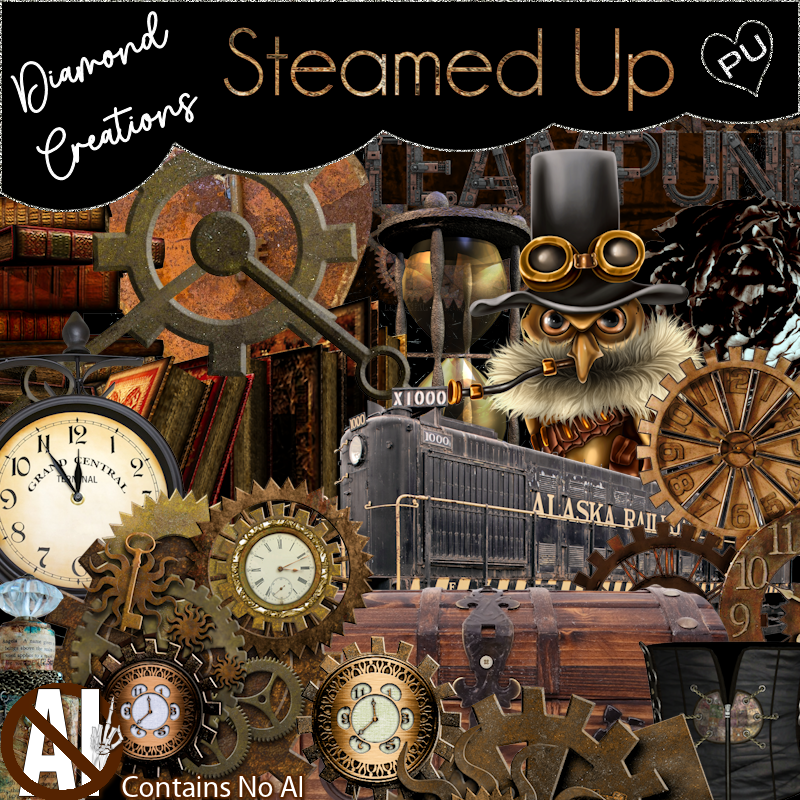
I am using the FTU Steamed Up by Diamond Creations
Open new image 700 x 700
Edit, copy Ele 70
Edit, paste, paste as new layer
Image, resize 70%
With your magic wand click inside of the frame
Selections, Modify, Expand by 8
Edit, copy PP 5
Edit, paste, paste as new layer
Layers, arrange, send to bottom
Selections, Invert
Edit, clear
Selections, Select None
Select Raster 2
Effects, 3D Effects, Drop Shadow, Settings of:
Vertical : 2
Horizontal: 2
Opacity: 50
Blur: 6
Color: Black
Shadow on new layer NOT Checked
Edit, copy Ele 1
Edit, paste, paste as new layer
Layers, arrange, send to bottom
Image, resize 80%
Effects, 3D Effects, Drop Shadow, same settings
Edit, copy Ele 61
Edit, paste, paste as new layer
Layers, arrange, send to bottom
Effects, 3D Effects, Drop Shadow, Same Settings
Edit, copy Ele 50
Edit, paste, paste as new layer
Image, resize 95%
Layers, arrange, send to bottom
Move up and place behind the frame
Edit, copy Tube
Edit, paste, paste as new layer
Layers, arrange, bring to top
Image, resize to fit your tag
Effects, 3D Effects, Drop Shadow, Same settings
Select Raster 2
Edit, copy Ele 10
Edit, paste, paste as new layer
Image, resize 50%
Move to the bottom left of the frame. Some of the element will be behind the tube. Move down til you have it the way you want. I moved so part of the gear is past the bottom of the frame
Effects, 3D Effects, Drop Shadow, Same settings
Select Raster 2
Edit, copy Ele 35
Edit, paste, paste as new layer
Image, resize 50%
Move to the top right of the frame. I moved this up and past the frame some.. The top part of the element is above the frame
Effects, 3D Effects, Drop Shadow, Same settings
Select Raster 2
Edit, copy Ele 24
Edit, paste, paste as new layer
Image, resize 50%
Move down to the left side and move down so that a little is behind the element you have at the bottom. It will be about half way down the left side of the frame
Effects, 3D Effects, Drop Shadow, Same settings
Select Raster 2
Edit, copy Ele 19
Edit, paste, paste as new layer
Image, resize 50%
Move to the bottom right. You will be able to see one of the clocks in the crook of the tubes arm
Effects, 3D Effects, Drop Shadow, Same settings
Select Raster 2
Edit, copy Ele 22
Edit, paste, paste as new layer
Image, resize 50%
Move to the left. Place some of this element behind the element at the middle of the frame
Effects, 3D Effects, Drop Shadow, Same settings
Edit, copy Ele 14
Edit, paste, paste as new layer
Image, resize 50%
Move to the left and place on top of the element you just placed
Effects, 3D Effects, Drop Shadow, Same settings
Edit, copy Ele 23
Edit, paste, paste as new layer
Image, resize 40%
Move to the left and place on top of the middle element. I made sure the bottom of this element will be behind the element at the bottom
Effects, 3D Effects, Drop Shadow, Same settings
Edit, copy Ele 30
Edit, paste, paste as new layer
Layers, arrange, send to bottom
Image, resize 80%
Effects, 3D Effects, Drop Shadow, Same settings
Edit, copy Ele 21
Edit, paste, paste as new layer
Image, resize 50%
Move to the left and place on top of the element on the top left of the frame
Effects, 3D Effects, Drop Shadow, Same settings
Edit, copy Ele 9
Edit, paste, paste as new layer
Image, resize 30%
Move to the right and place on the middle of the element at the top. I placed on the clock that is there at the right that you see the most. See my tag for placement
Effects, 3D Effects, Drop Shadow, Same settings
Select Raster 2
Edit, copy Ele 49
Edit, paste, paste as new layer
Image, resize 40%
Move to the very top of the frame on the left. Move around til you can see the word love
Effects, 3D Effects, Drop Shadow, Same settings
Remember to add your copyright info. Make sure it is plain and legible
Add your name to the tag
Save as PNG
Thank you Rachey
for trying my tut


